
🔐LastPass Account Creation & Activation Guide
This guide details the steps to create and activate your LastPass account from an invitation email. It is designed for new users who are receiving a company-issued LastPass invite.
📩 Step 1: Receive the Invitation Email
Check your email for a message from LastPass (sender: do-not-reply-support@lastpass.com) with a subject similar to “LastPass account created”
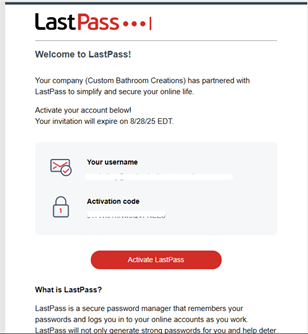
If not found, check your Spam, Promotions, or Clutter folders.
Note: A verification email will be sent to ensure that it's the user logging in when they change locations.
Step 2: Click the Activation Link
Inside the invitation email, click the “Activate Lastpass” which will take you to the LastPass account setup portal.
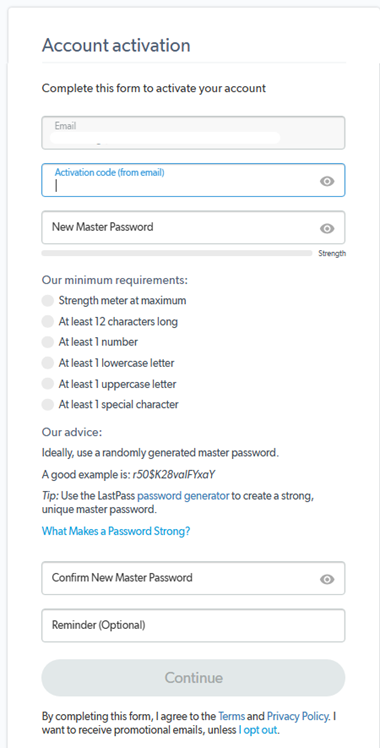
Step 3: Account Activation Code and Master Password
Copy the activation code in the first email you received and paste it in the “Activation code” box.
Then, create a strong, complex, memorable password to access your LastPass Vault .
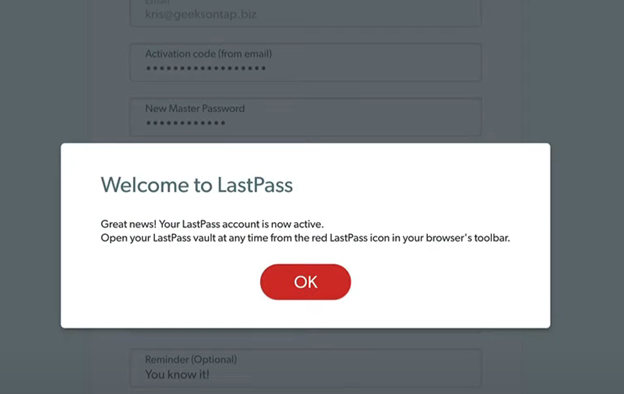
After entering the details, click 'Continue” and wait for the process to finish. If all is well, you'll get this notification.
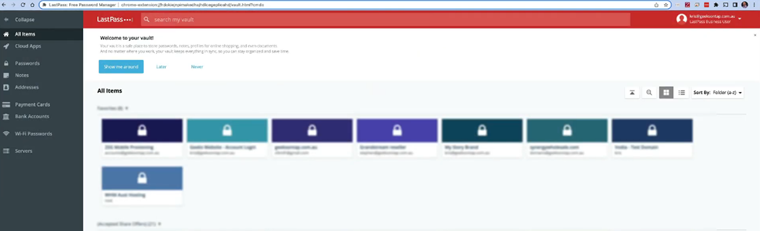
Step 5: Access the Vault
You’ll be redirected to your LastPass Vault, your central dashboard for storing:
- Website logins
- Secure notes
- Payment cards
- Addresses
Step 6: Browser Extension
The extension is installed in Edge and Chrome, shown as follows:
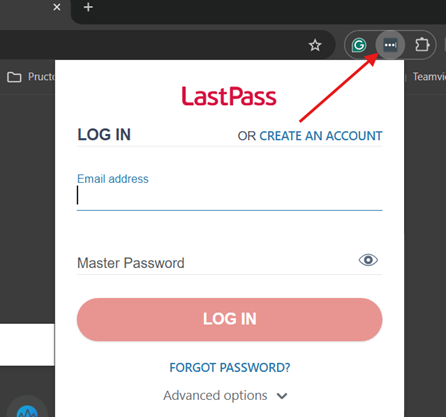
Enter your email and master password to log in to the extension.
If the device is running on Windows and has been adopted into our fully managed system, it should already be deployed to the browser extensions.
If you don't have a Windows or a managed device, no worries- just follow the steps below to add Lastpass to your browser.
Step 01
Go to the following link from your browser -> https://lastpass.com/download
Step 2
Click the download button next to the browser you'd like to install the Lastpass extension on.
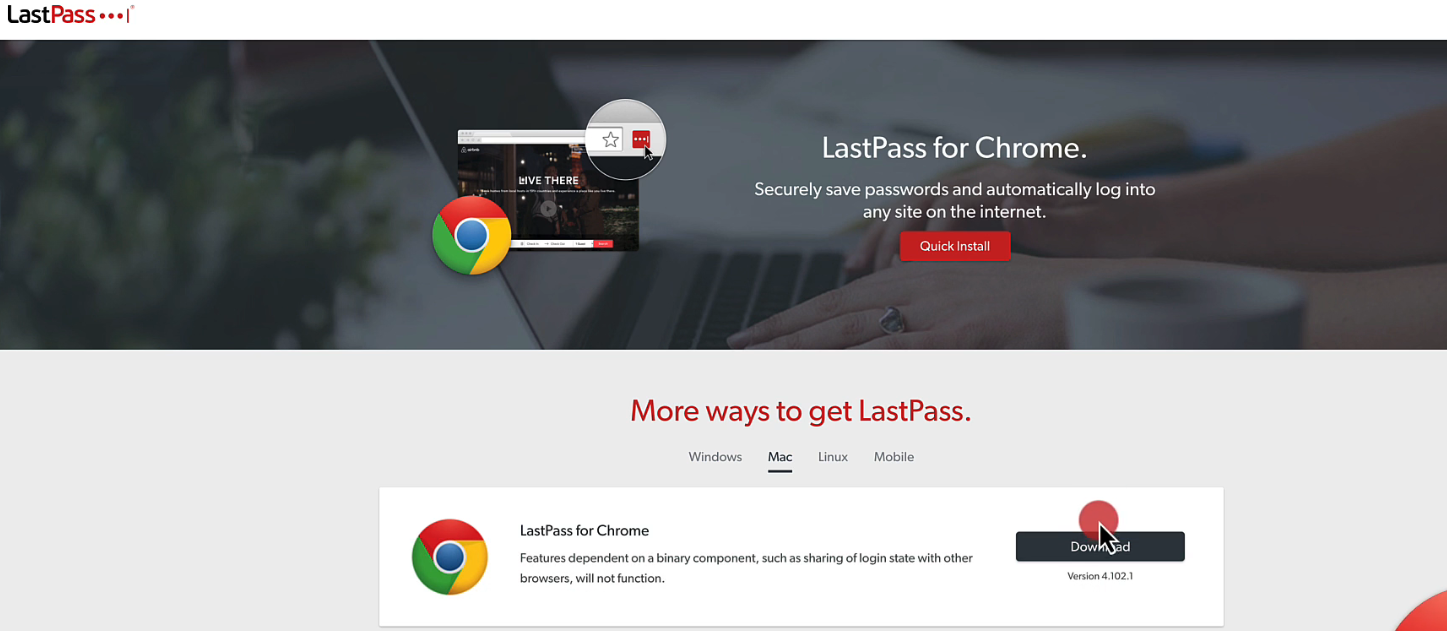
Step 3
Step 3.1 - Add to Chrome
Visit the page and click on "Add to Chrome" if you've selected the Chrome browser.
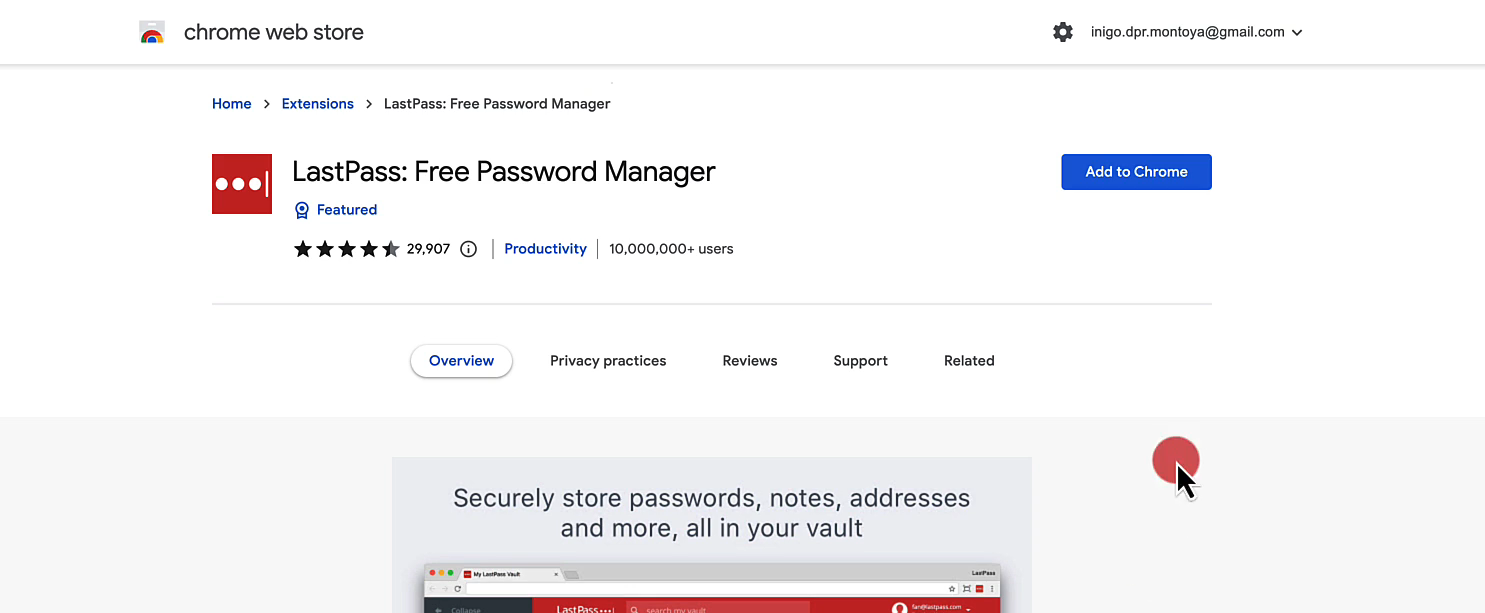
The setup will be added automatically, and you will be prompted to "Add Extension".
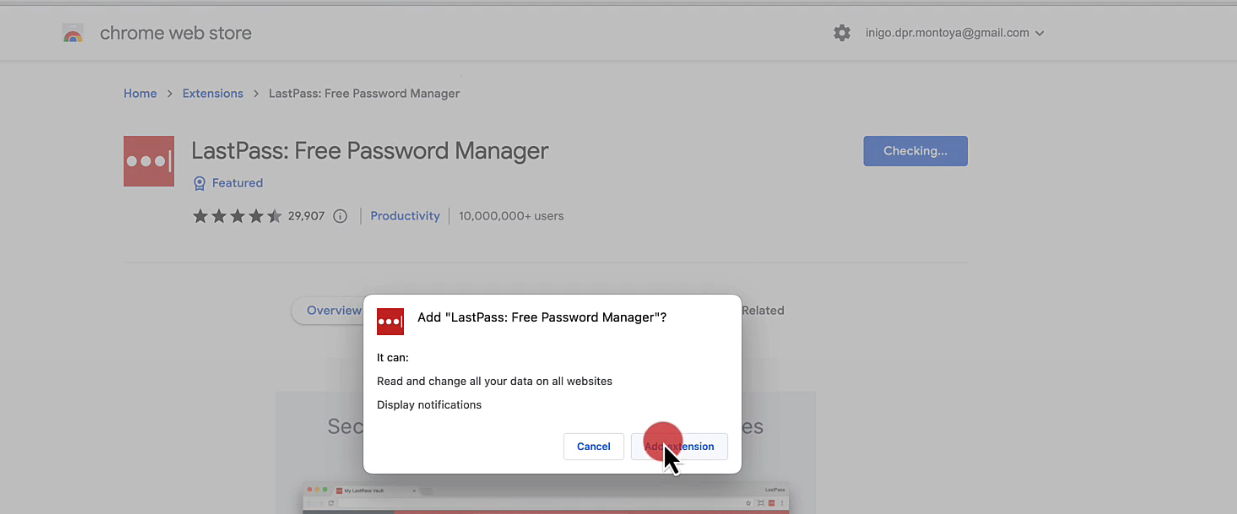
Sign in to the LastPass account once the extension has been installed by clicking on the extension.
Step 3.2 - Add to Safari
If you chose Safari as your browser, click the "Get" button on the Safari page.
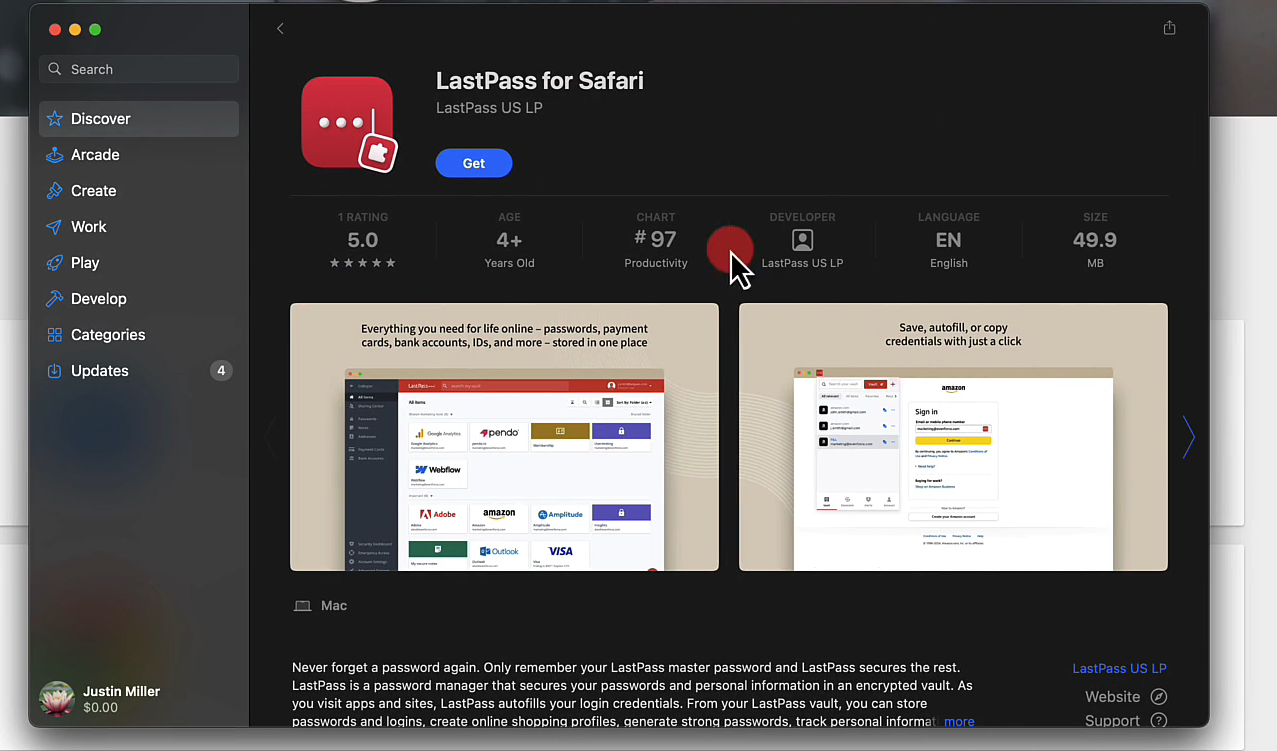
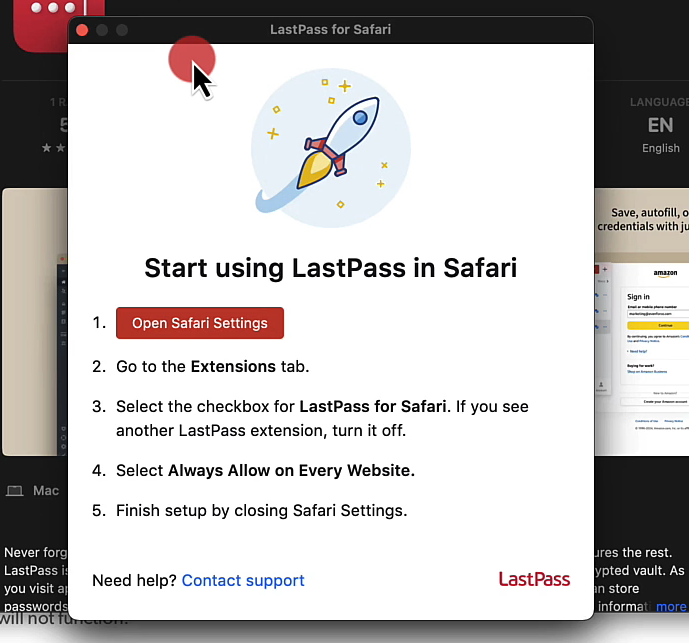
Follow the steps provided on the page.
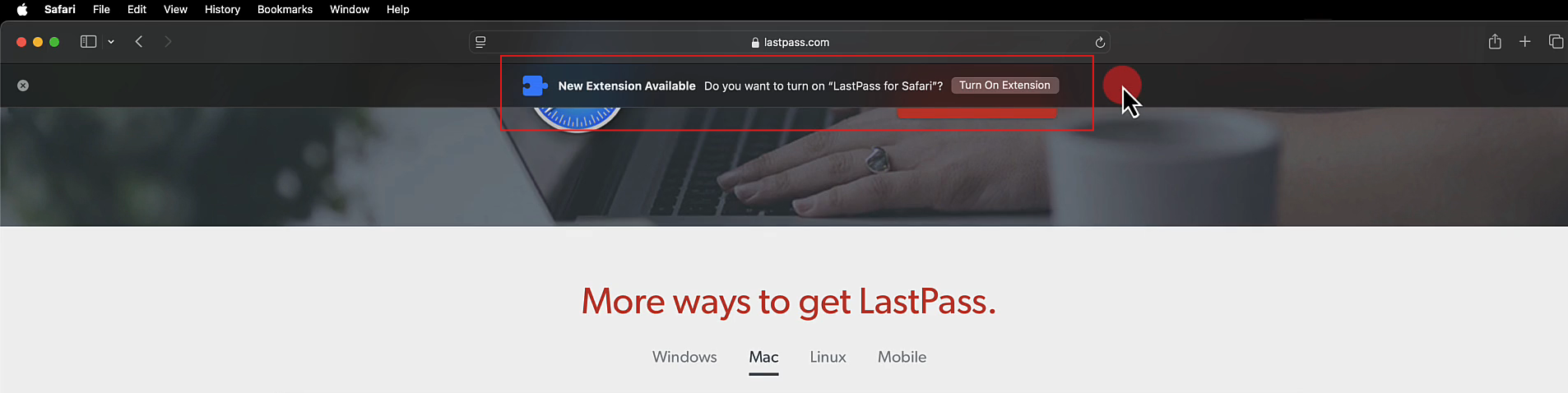
Once you add, you will receive the notice "Turn on Extension"
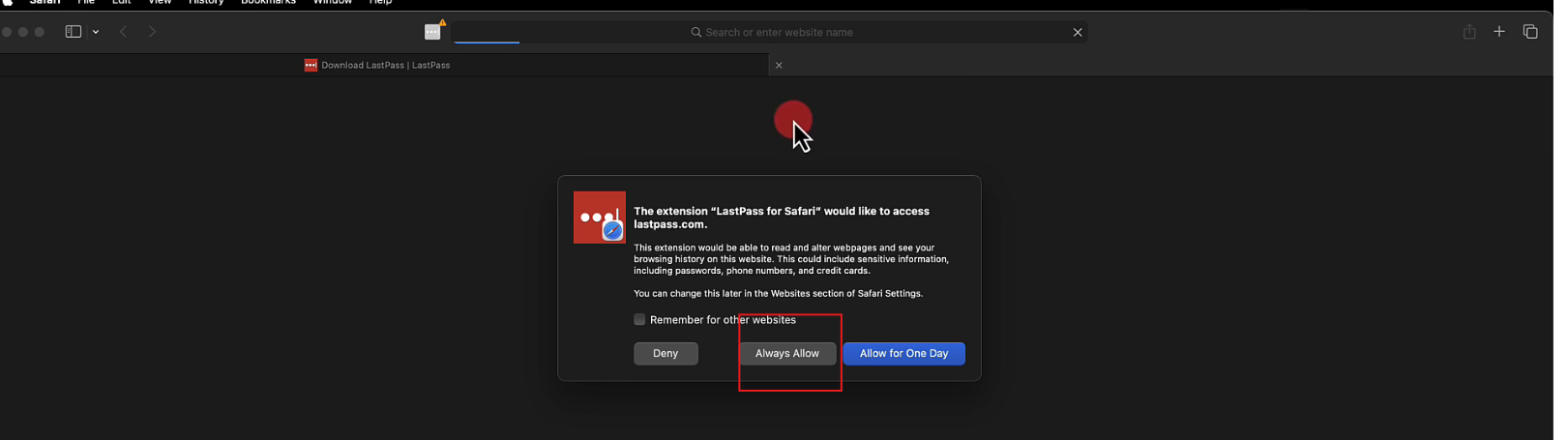
Once you click that, you will need to click on "Always Allow"
Next, log into your Lastpass account and you'll see the Lastpass extension appear in your Safari browser.

Step 3.3 - Add to Edge
Click on Download for Edge browser
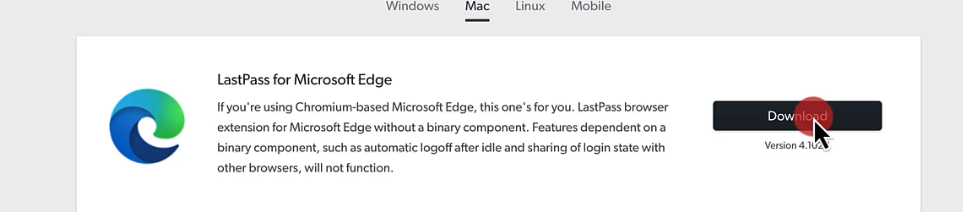
You will be directed to "Edge Add-ons" page. While you are on it, click on "Get"
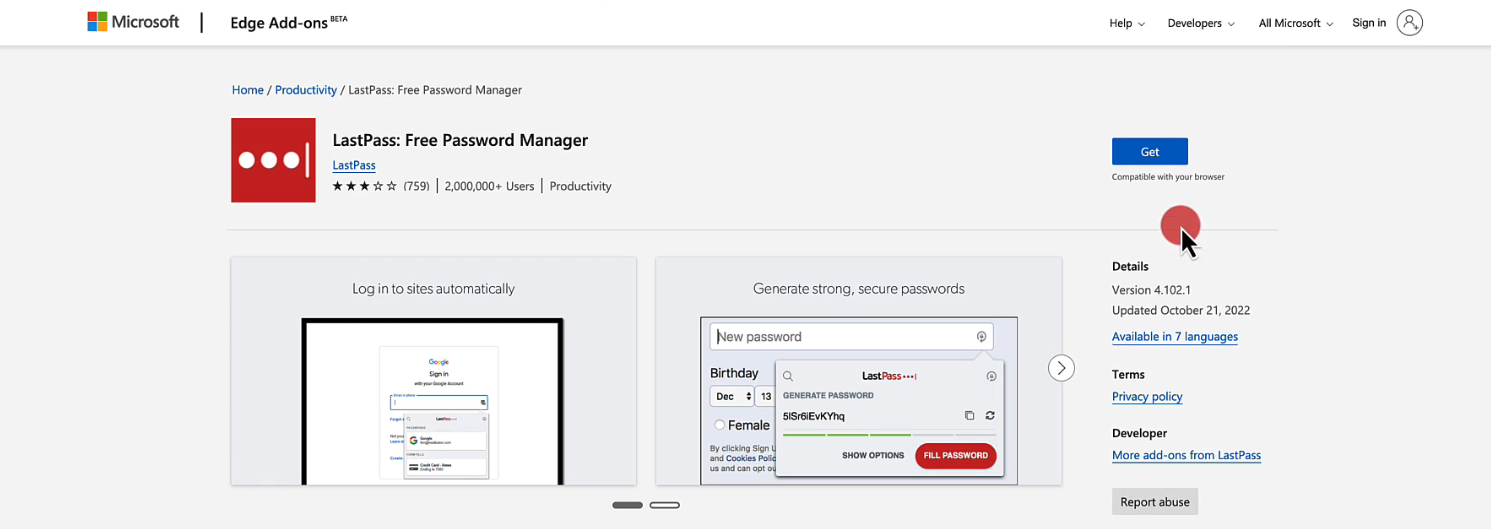
Then click on "Add Extension"
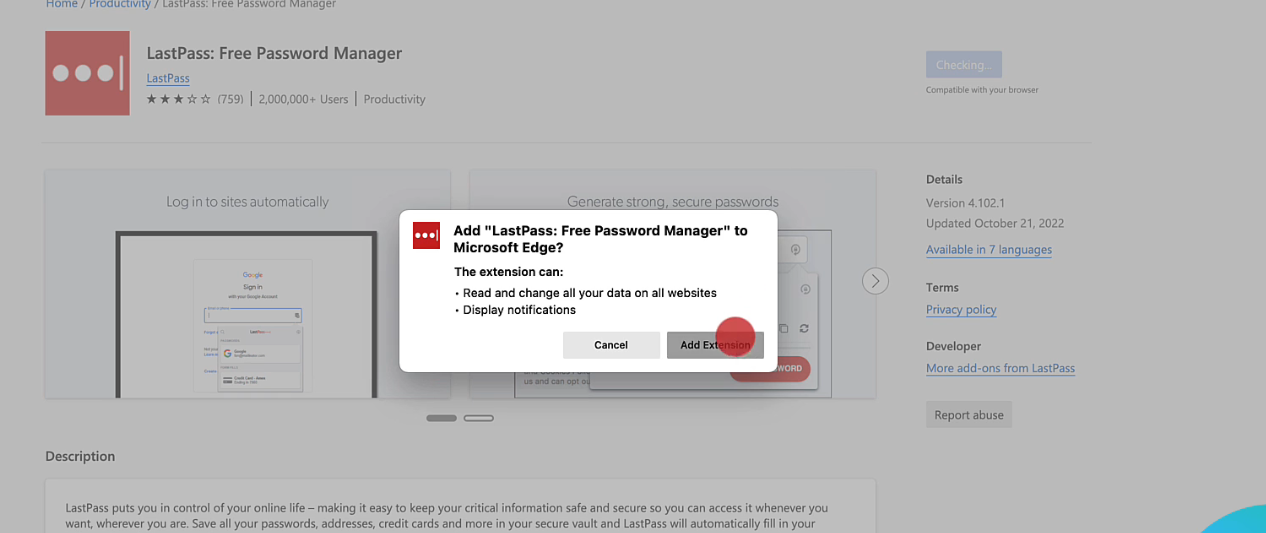
Then sign into your activated lastpass account via the extension