
Account Migration from Family to Business (MSP)
Purpose
This guide outlines how to seamlessly migrate a user from a LastPass Family plan to your MSP-managed LastPass Business account. It ensures users retain all vault content while switching to a business license and aligns with MSP best practices.
Prerequisites
- Set up Federation and SSO for Lastpass MSP.
- Protected users group should be assigned only to Licensed Business Premium Users.
Steps
1. Export the User’s Vault Data
TheinitialExport
stepuserisvaulttovia My Vault → Account Settings → Export using CSV or encrypted file exportallformat.-
Store the
vaultexporteddatafilefromsecurely; you’ll need it for import (if in any case thecurrentpasswordsusersdon'tinappeartheaftercurrentconversion)plan
2. Prepare a Temporary Admin Account
-
Create a temporary admin
accountuser inouryourinstanceMSP’s(MSPLastPassAccount)Businesssoinstance.that -
canProvide
bethesegivencredentials to the client forverifyingvalidationthatafter migration.
3. Record Existing User Permissions
-
Document the
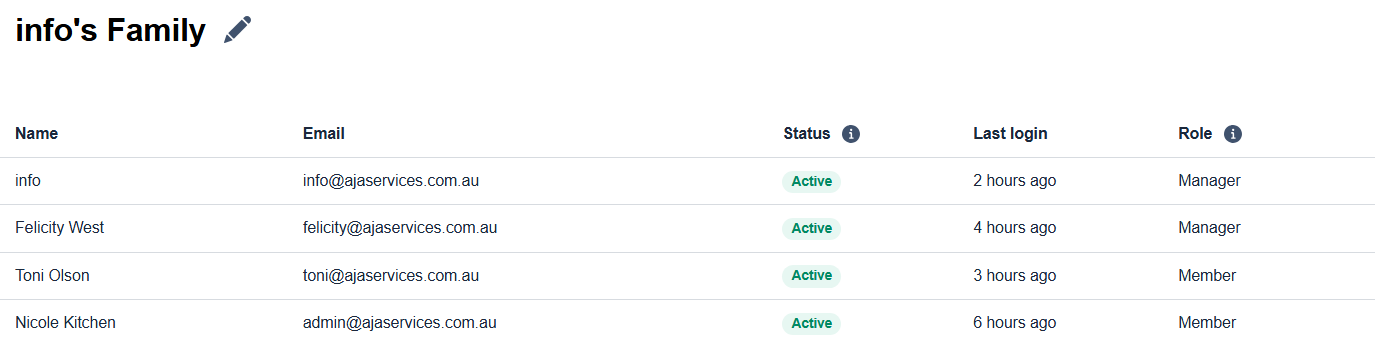
migrateduser’spasswordsfamily-relatedarepermissions,allsharedinfolders,placeor Checkadmintherolescurrenttopermissionsreplicateforlater.the users and note them down.
Ex:
- Remove
alltheusersUser from thecurrentFamilyplanPlan -
From the Family dashboard, select the user and click Remove from Families.
-
Confirm action. The user's account downgrades to a free license but retains vault data.
Click on a user, and click on "Remove from Families" button- Accept the confirmation and proceed removing the users from the current plan
Afterthe-
isThe
complete, usersuser will receive an activationemailsemailfrom thesince ADLastpassprovisioningProvisioningand SSO (This stepfederation) isperformedenabled.before the migration). OnceusersThe
receiveusertheir activation email, they canmust click theactivationlinkinside it.Then they will be prompted toand logintoin using theiraccountexistingwith their current credentialsUser email which they were using previously to log into their lastpass instanceMaster pasword which they were using previously to log into their lastpass instance
ThentheyThey will
beseeinformedathatprompt:"“This account will be converted to abusinessBusinessaccount"account” Select OK.ThenuserOn
havere-login, their license status changes toselectBusiness."OK"and
removal-
-
Re-assign any roles or permissions noted earlier.
-
If using shared folders/groups, reassign access as needed within your MSP-managed tenant.
-
Ask the user
willtogetlogsignedinoutand verify that all their passwords, shared folders, and settings are present. OncethatUse
isthedone,temporaryuseradminwill haveaccount tosign in again and you will see that the userconfirm: licensestatushasbeenchanged to Business, and vault contents are intact.-
Log in as the temporary admin.
-
Import the user’s vault data via My Vault → Import using the previously exported file. Ensure proper vault contents (passwords, notes, shared items) transfer accurately.
4.
One user account should be assigned as an admin to remove other users.
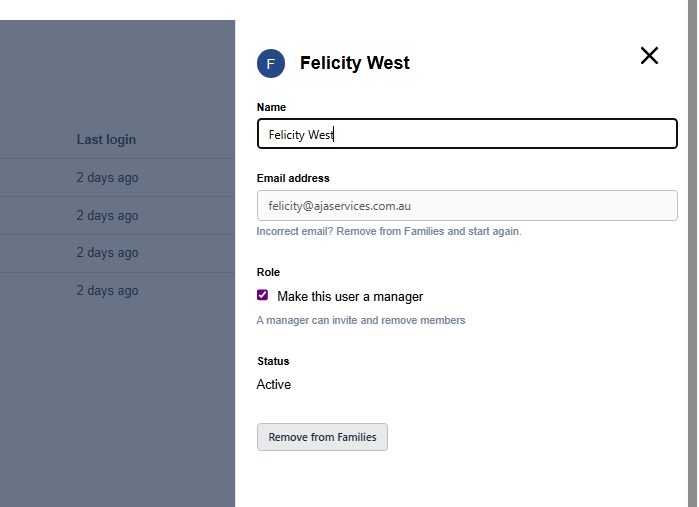
Removing these users from any plan will convert their accounts from licensed to free.
Removing users from an account won't delete the account data – it'll just reduce the features that come with a free account.
5. Trigger Activation via SSO/Provisioning
6. Repository Access & Permissions
7. Verify Migration
8. Import Vault Data (Optional)
This is optional only if there are issues during the accounts conversion from Freefree to business.