
Account Migration from Family to Business (MSP)
Purpose
Prerequisites
- Set up Federation and SSO for Lastpass
MSPMSP. - Protected users group should be assigned only to Licensed Business Premium Users.
Steps
- The initial step is to export all the vault data from the current users in the current plan
- Create a temporary admin account in our instance (MSP Account) so that this can be given to the client for verifying that the migrated passwords are all in place
- Check the current permissions for the users and note them down.
Ex:
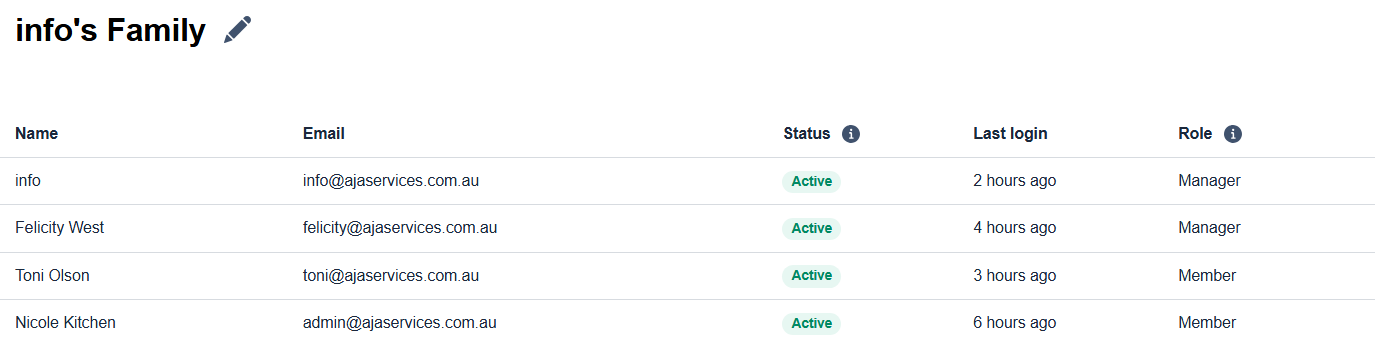
- Remove all users from the current plan
One user account should be assigned as an admin to remove other users.
- Click on a user, and click on "
RemovRemove from Families" button
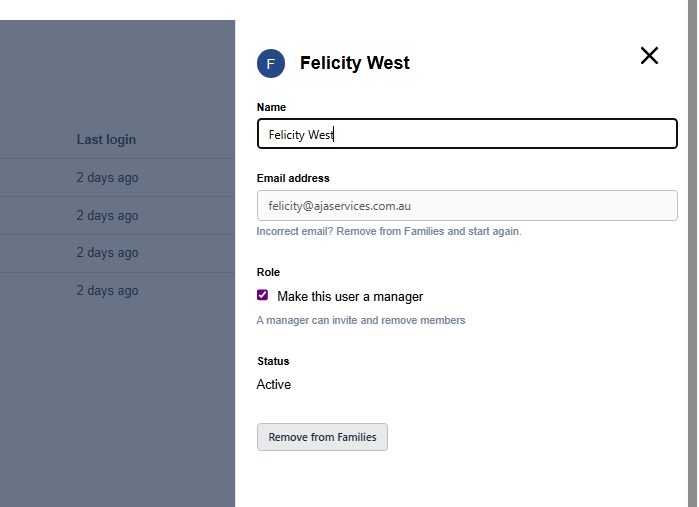
- Accept the confirmation and proceed removing the users from the current plan
Removing these users from any plan will convert their accounts from licensed to free.
Removing users from an account won't delete the account data – it'll just reduce the features that come with a free account.
OnceAfter the removalhasisbeen done,complete, users willgetreceive activation emails from the AD Lastpass Provisioning (doneperformedprior tobefore the migration).- Once users receive their activation email, they can click the activation link inside it.
- Then they will be prompted to log into their account with their current credentials
- User email which they were using previously to log into their lastpass instance
- Master pasword which they were using previously to log into their lastpass instance
- Then they will be informed that "This account will be converted to a business account"
- Then user have to select "OK" and the user will get signed out
- Once that is done, user will have to sign in again and you will see that the user license status has been changed to Business from Free