
iOS Device Web-Enrollment User Guide
Enrol your iPhone or iPad for work
Enrolling your device gives it secure access to your work email, Microsoft Teams, and your other work apps. The whole process takes about 10 minutes and you do all of it on the phone or iPad itself.
You'll be asked to install a "management profile." That is normal, and it is the part that makes work apps and email work. The next section explains exactly what Computerman can and cannot see on your device.
Before you start
| What you need | Details |
|---|---|
| An iPhone or iPad | Running iOS 15 / iPadOS 15 or later. Check under Settings > General > About > Software Version. |
| Safari | You must use Safari. Chrome, Edge and Firefox will not work — Safari is the only browser Apple lets install a management profile. |
| Wi-Fi or mobile data | A stable connection for the full 10 minutes. |
| Your device passcode (if you have one set) | iOS may ask for it while the profile installs. It's the code you use to unlock the device — not a work password. |
| Your work email address and password | The same ones you use to sign in to work email or Teams on a computer. |
| Microsoft Authenticator | On the phone you normally use to approve sign-ins. You'll need it to approve this one. |
Signing in to your work account for the very first time? Contact the Computerman Service Desk before you start — we'll get your account set up so enrolment runs smoothly.
What your organisation can and cannot see (BYOD/Personal Devices Only)
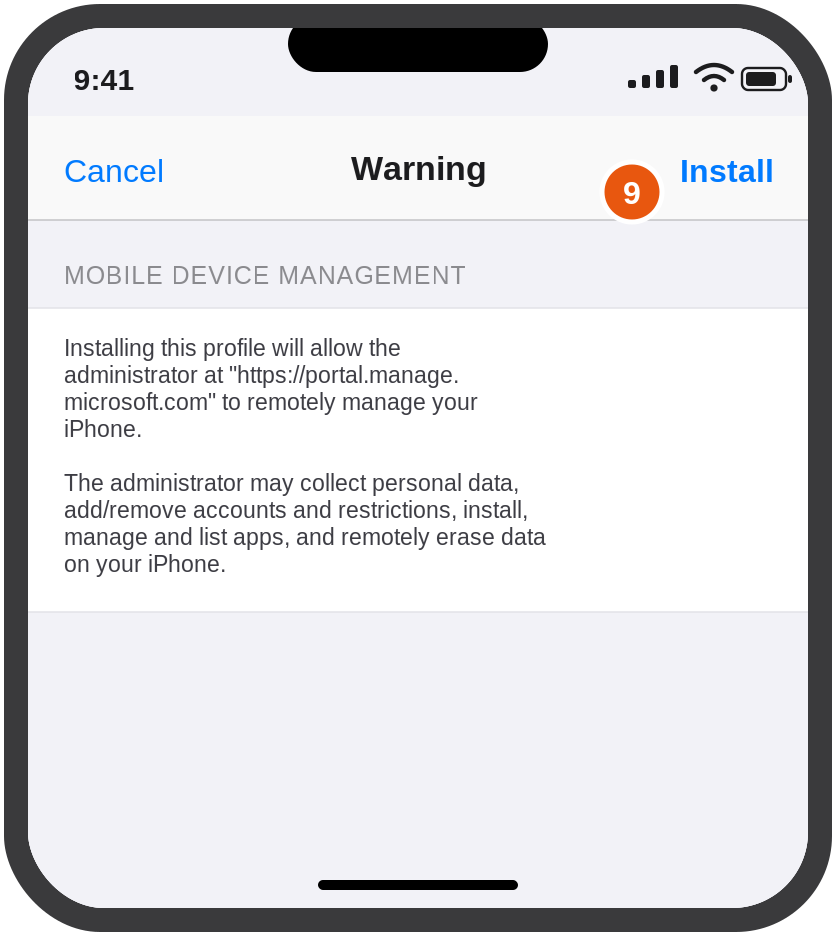
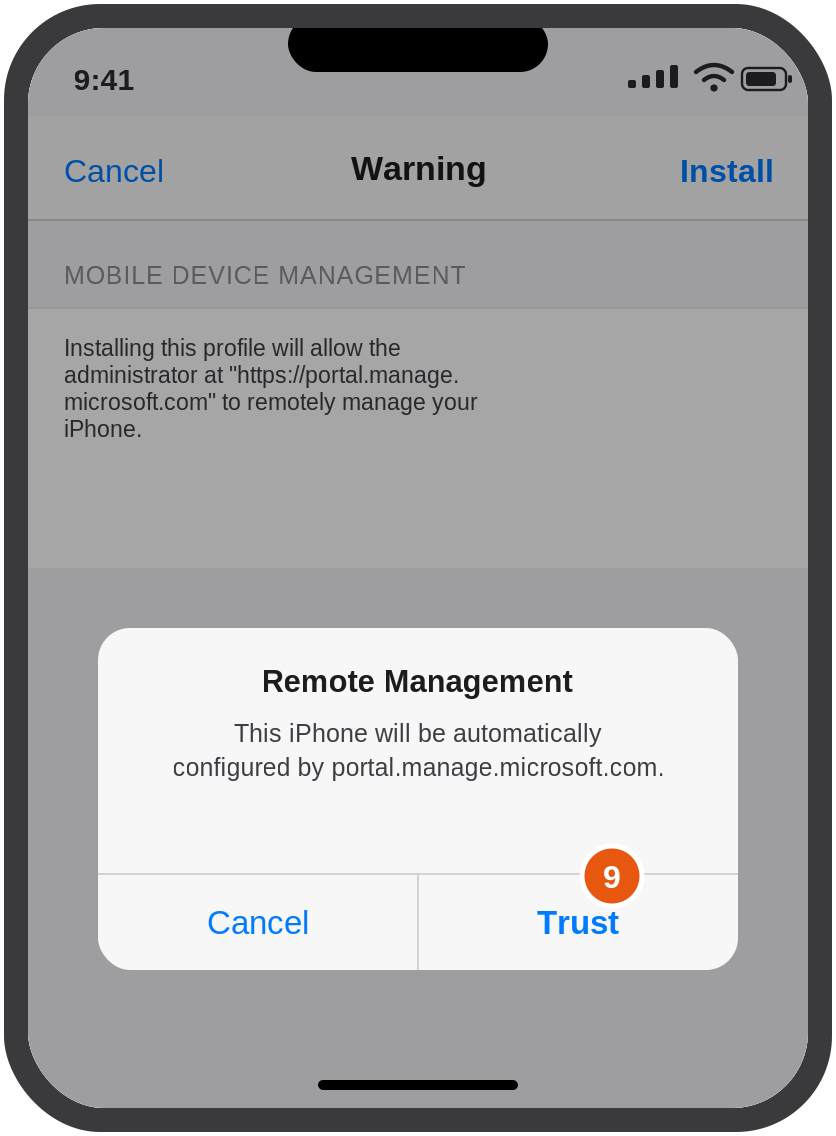
For those enrolling a personal device, Apple shows a strongly worded warning during Step 9. It is standard text that appears on every managed device in the world, and it worries people, so here is the plain-English version.
| ✅ We can | ❌ We cannot |
|---|---|
| See the device model, name, serial number, IMEI and iOS version | Read your personal email, SMS or iMessages |
| See the last four digits of your phone number | See your photos, videos or notes |
| See which work apps are installed | See your browsing history |
| Install, update and remove work apps | See your call history |
| Apply security settings (for example, require a passcode) | See your personal apps or their data |
| Remotely lock the device, remove your work data, or remove the device passcode | See where your device is |
Removing the management profile removes your work apps and work data. Your personal apps, photos and accounts are untouched.
One thing to be straight about: because this method uses full device management, a remote factory reset is technically possible. In normal use — including when you leave the organisation — we only remove work apps and work data. We would only reset a device if you asked us to, for example, if it were lost or stolen.
The steps
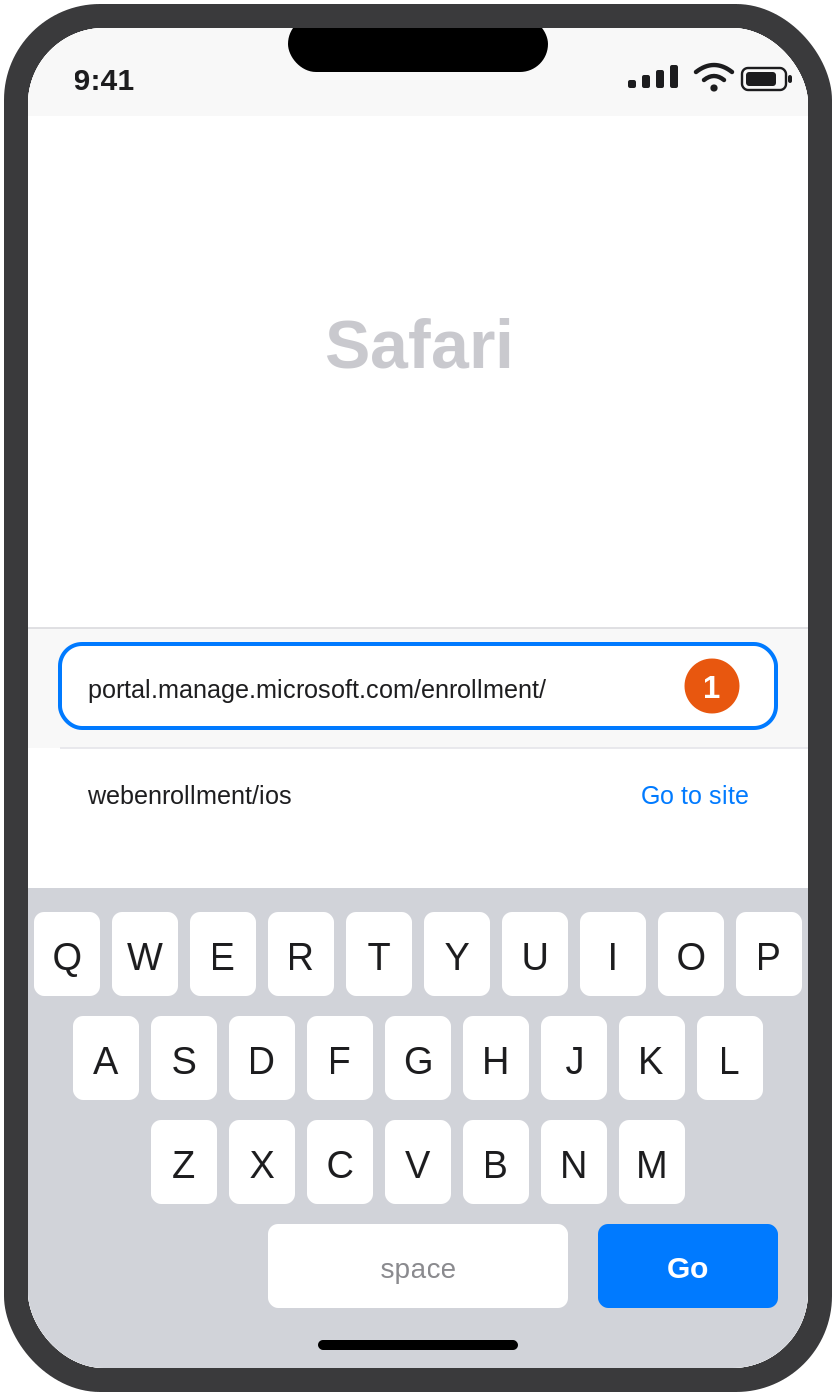
Step 1 — Open Safari and go to the enrolment page
Open Safari (not Chrome). In the address bar, type:
portal.manage.microsoft.com/enrollment/webenrollment/iosThen tap Go.
Tip: If you're reading this on the device, tap the link above rather than typing it. If Safari isn't your default browser, copy the address and paste it into Safari manually.
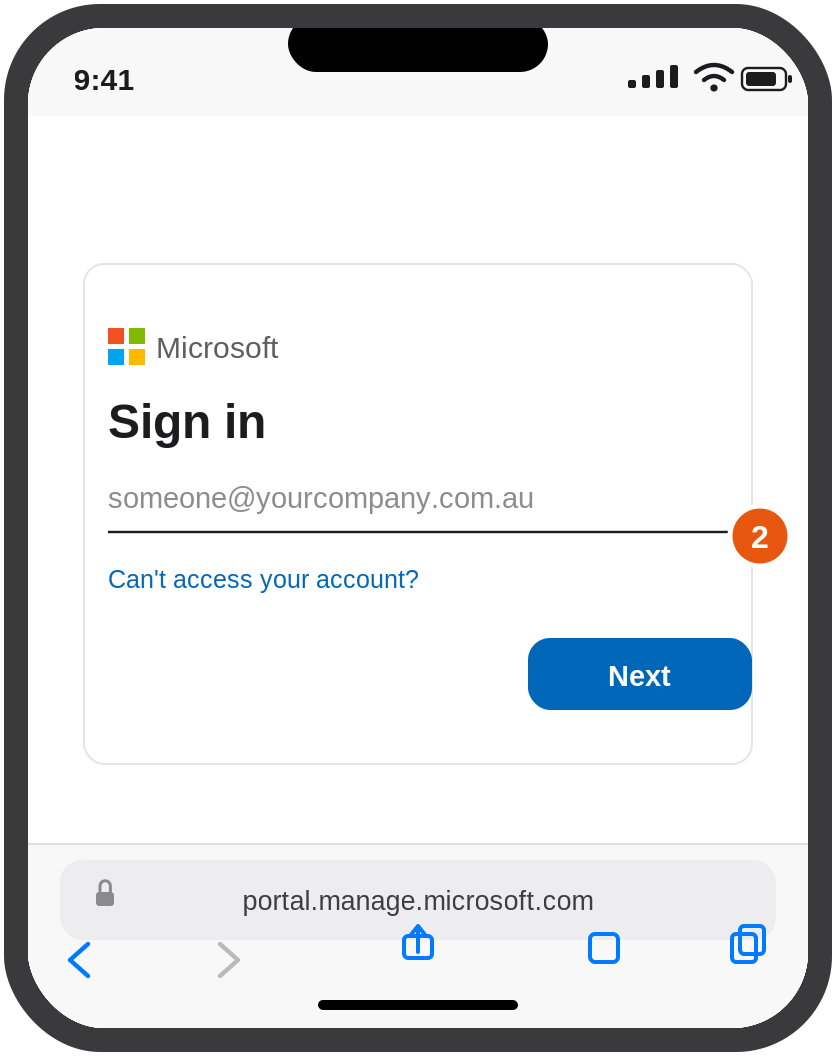
Step 2 — Sign in with your work email
Enter the work email address Computerman sent you, then tap Next.
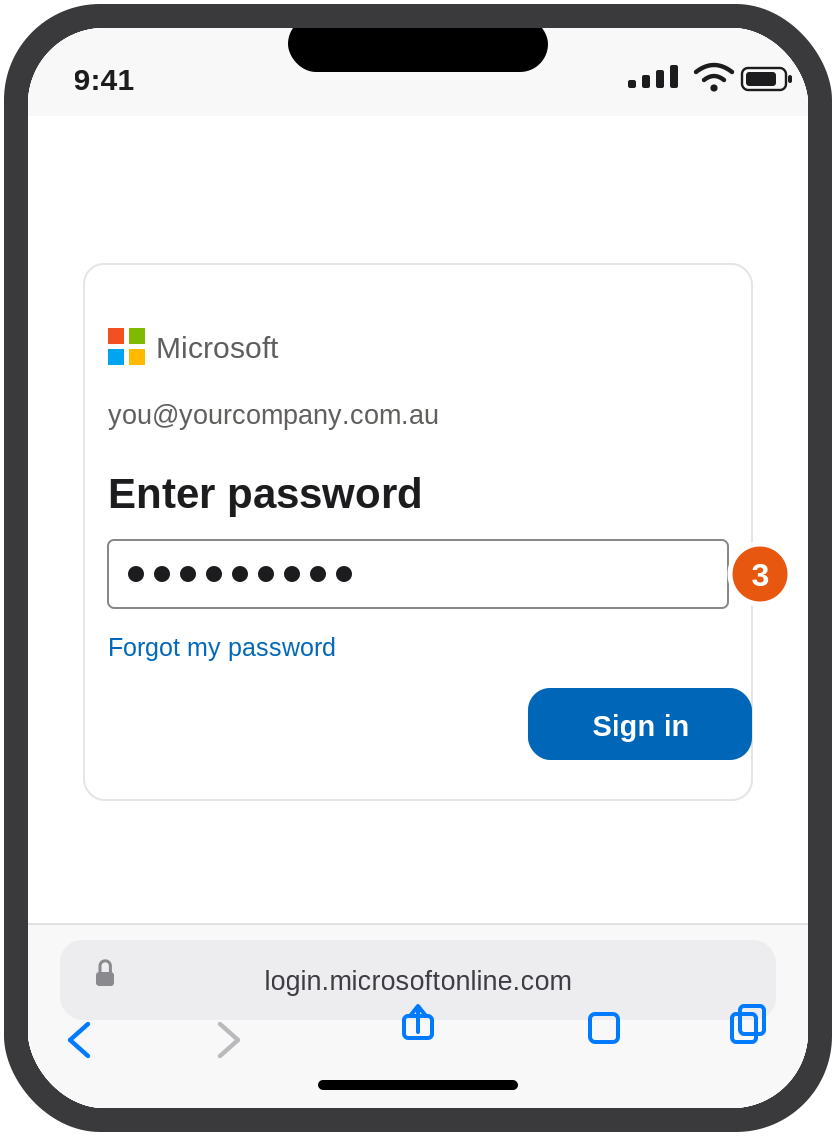
Step 3 — Enter your password and approve the sign-in
Enter your work password and tap Sign in.
You'll then be asked to approve the sign-in. A two-digit number appears on screen — open Microsoft Authenticator on the phone you normally approve sign-ins with, type that number in, and tap Yes.
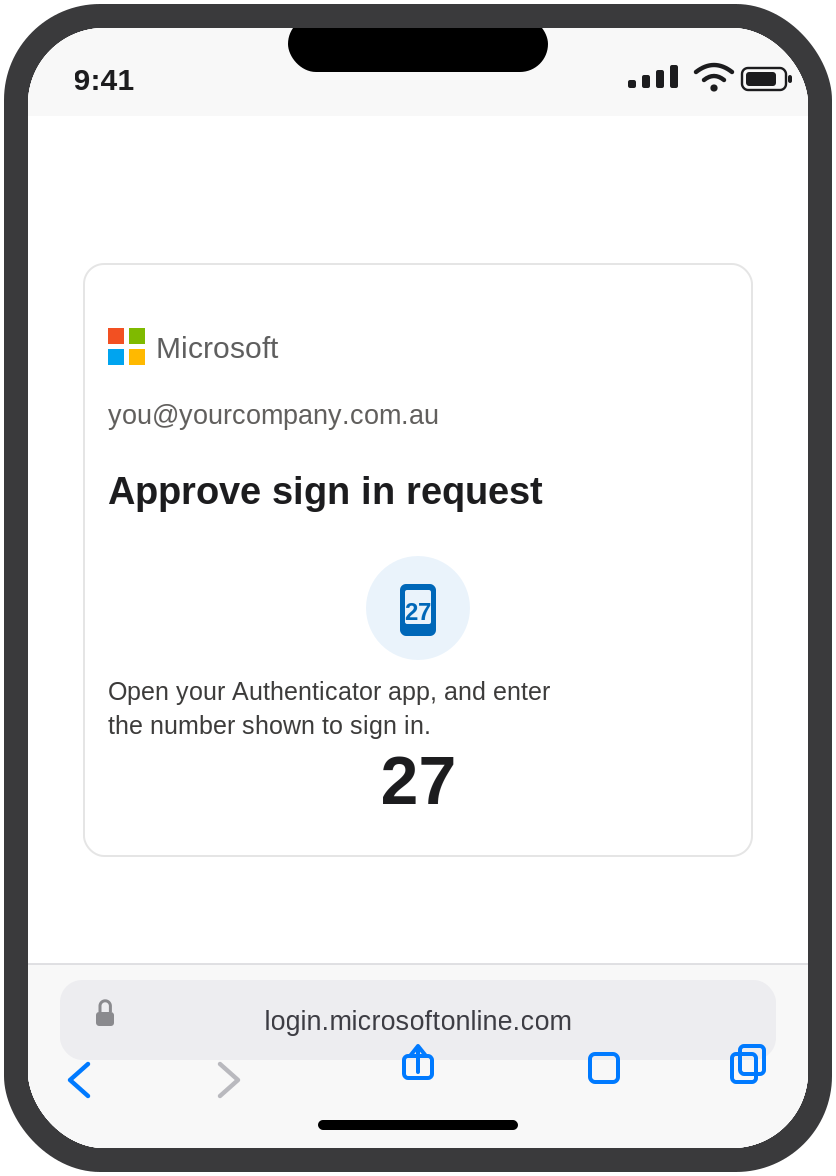
Approving on this same phone? Switch to Authenticator, enter the number, then come straight back to Safari — don't close the Safari tab.
Step 4 — Follow the on-screen prompts
Once you're signed in, the enrolment page loads. Read what's on screen and tap the button to continue — depending on your device, it may be labelled Begin, Continue or Get started.
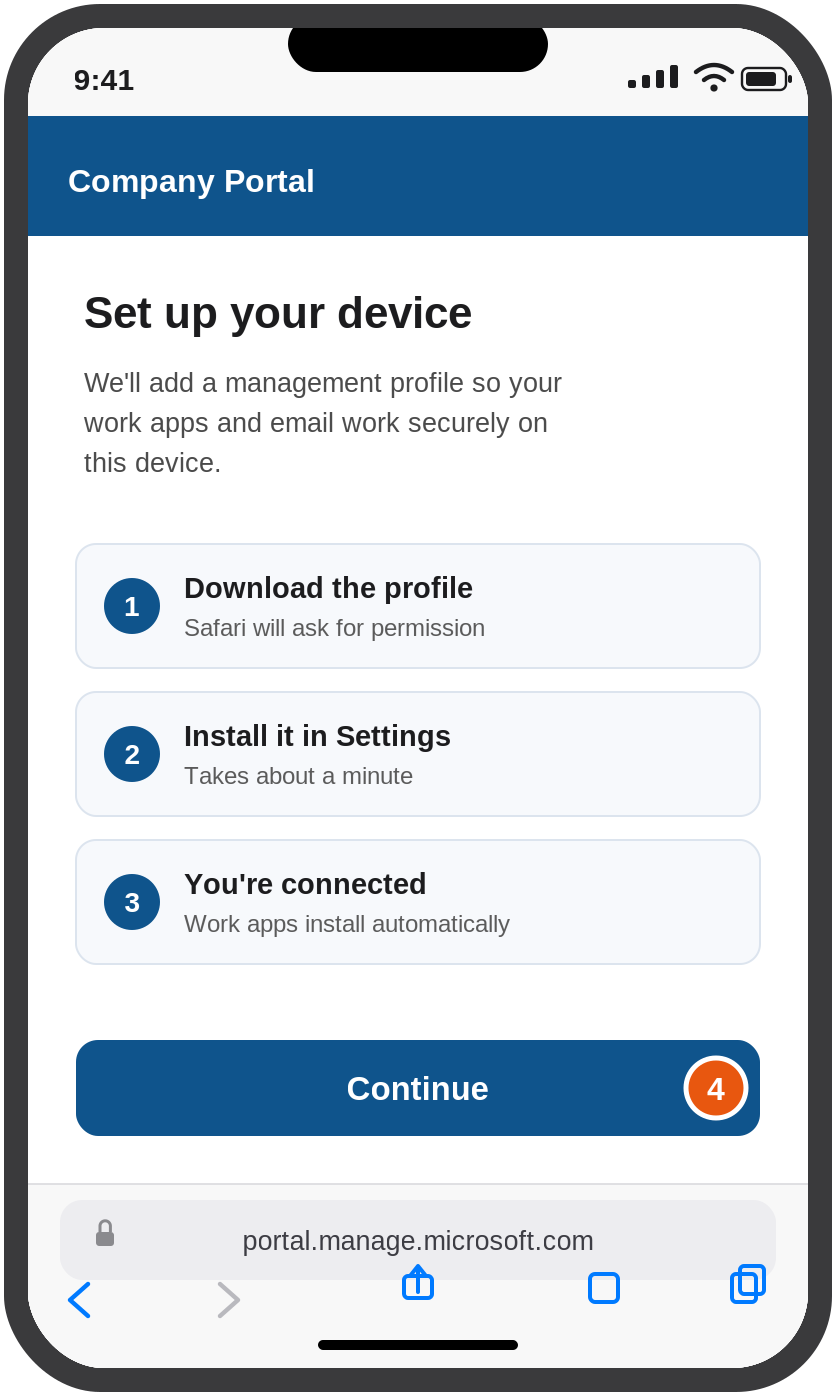
Step 5 — Allow the download
Safari will ask: "This website is trying to download a configuration profile. Do you want to allow this?"
Tap Allow.
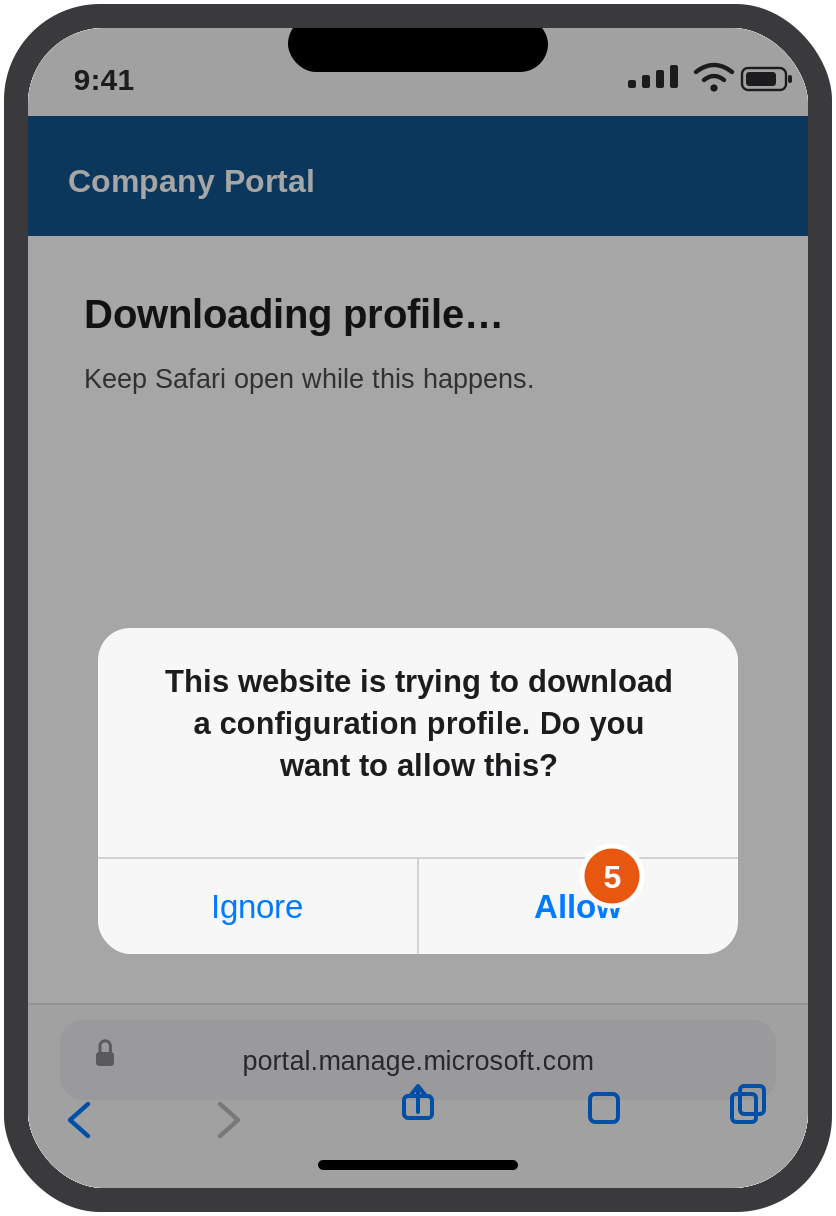
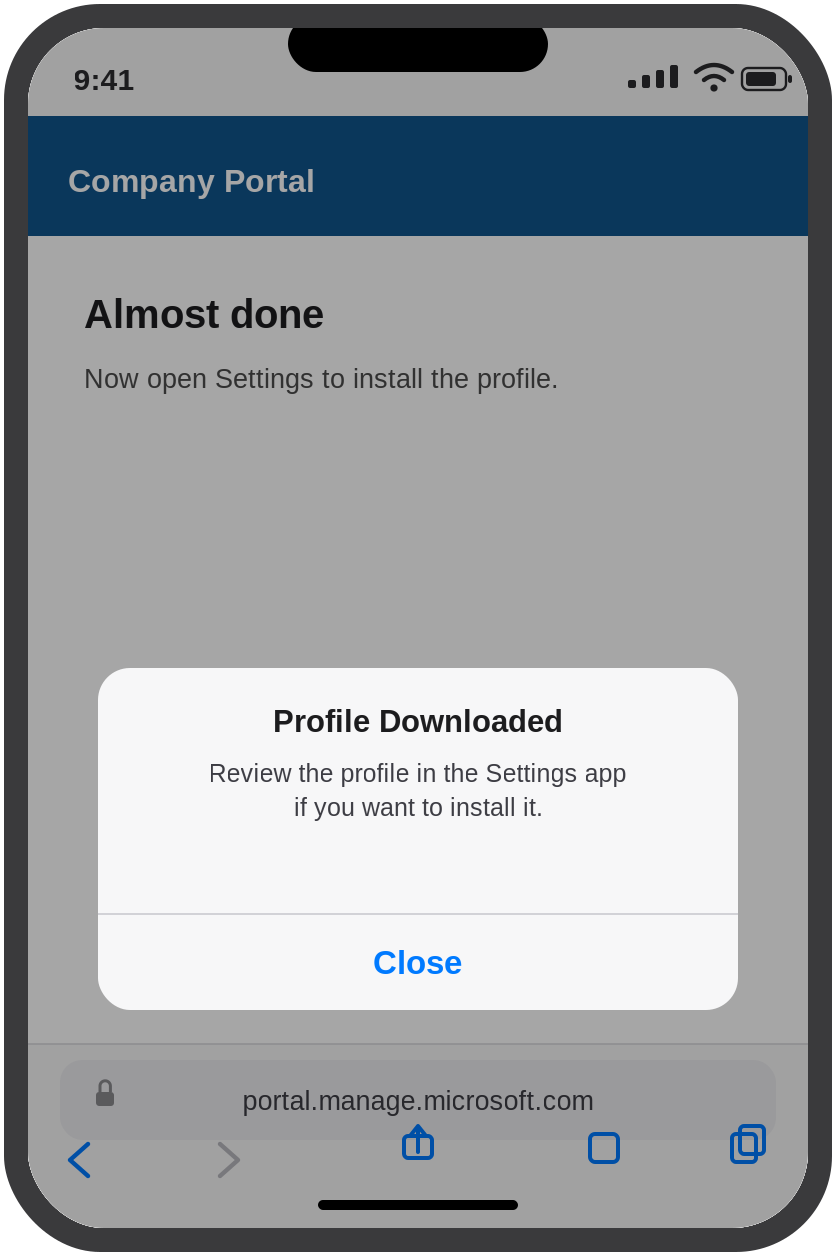
A moment later you'll see "Profile Downloaded — Review the profile in the Settings app if you want to install it." Tap Close.
Stay in Safari and don't close the tab until the download finishes. Then move to Step 6 straight away — iOS automatically deletes a downloaded profile if you don't install it within about 8 minutes.
Step 6 — Open Settings and tap "Profile Downloaded"
Press the Home button or swipe up to leave Safari, then open the Settings app. Near the top — just under your name — you'll see Profile Downloaded. Tap it.
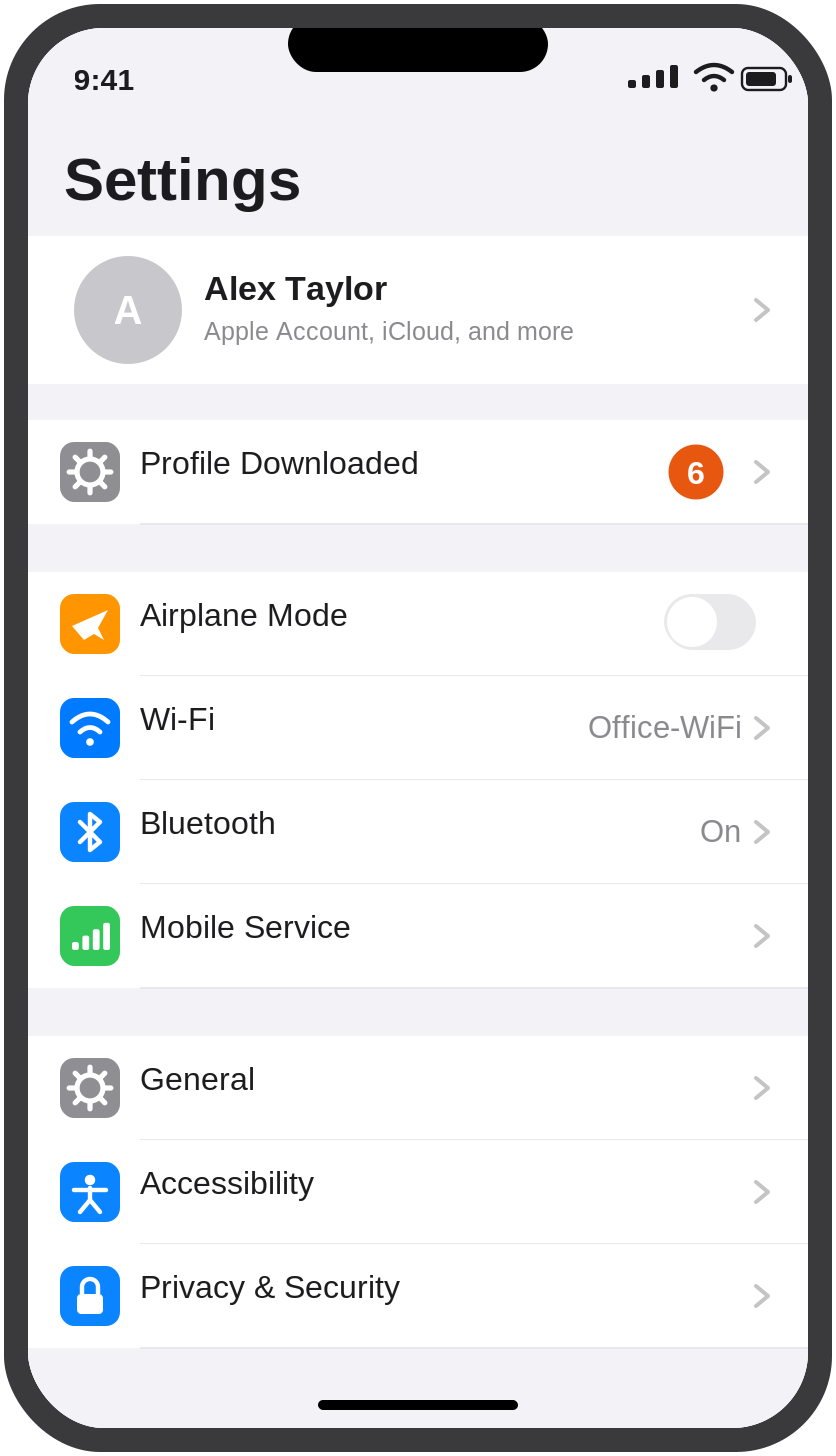
Can't see "Profile Downloaded"? Look under Settings > General > VPN & Device Management instead — it appears there under Downloaded Profile. If it isn't in either place, the profile has already expired. Go back to Step 1 and install it promptly this time.
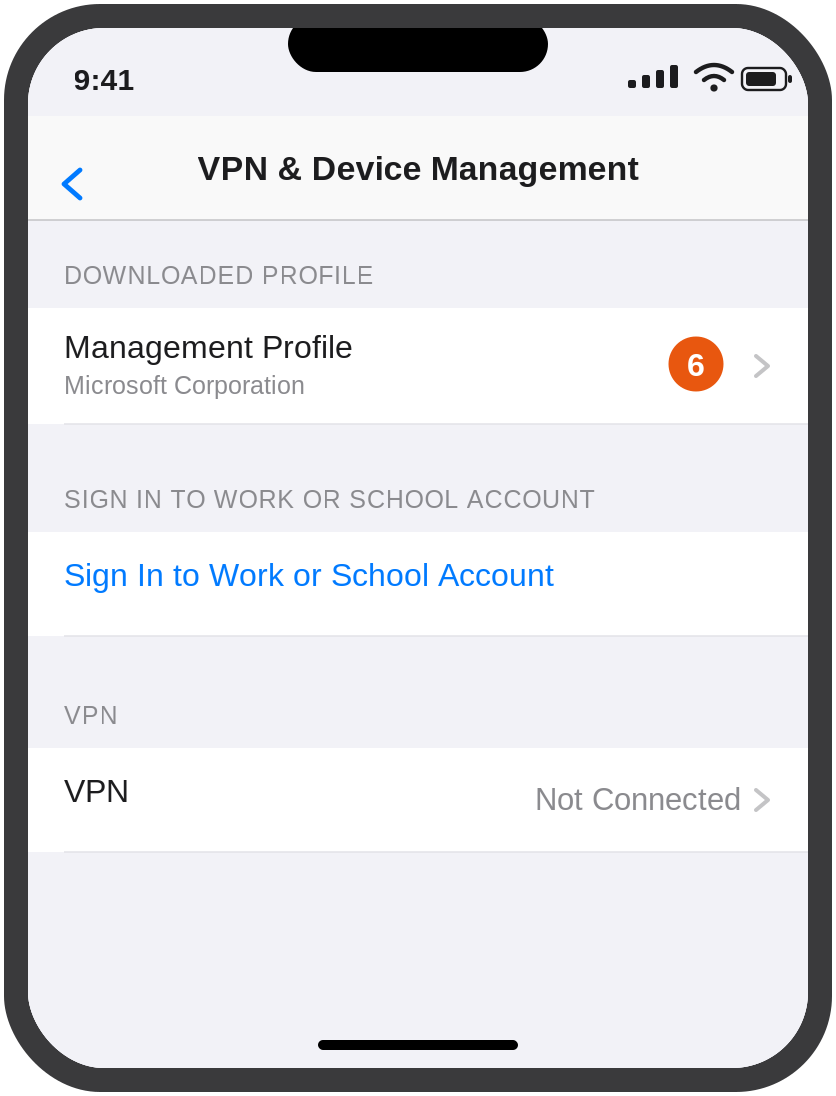
Step 7 — Tap Install
The Install Profile screen shows Management Profile, signed by Microsoft Corporation and marked Verified. Tap Install in the top-right corner.
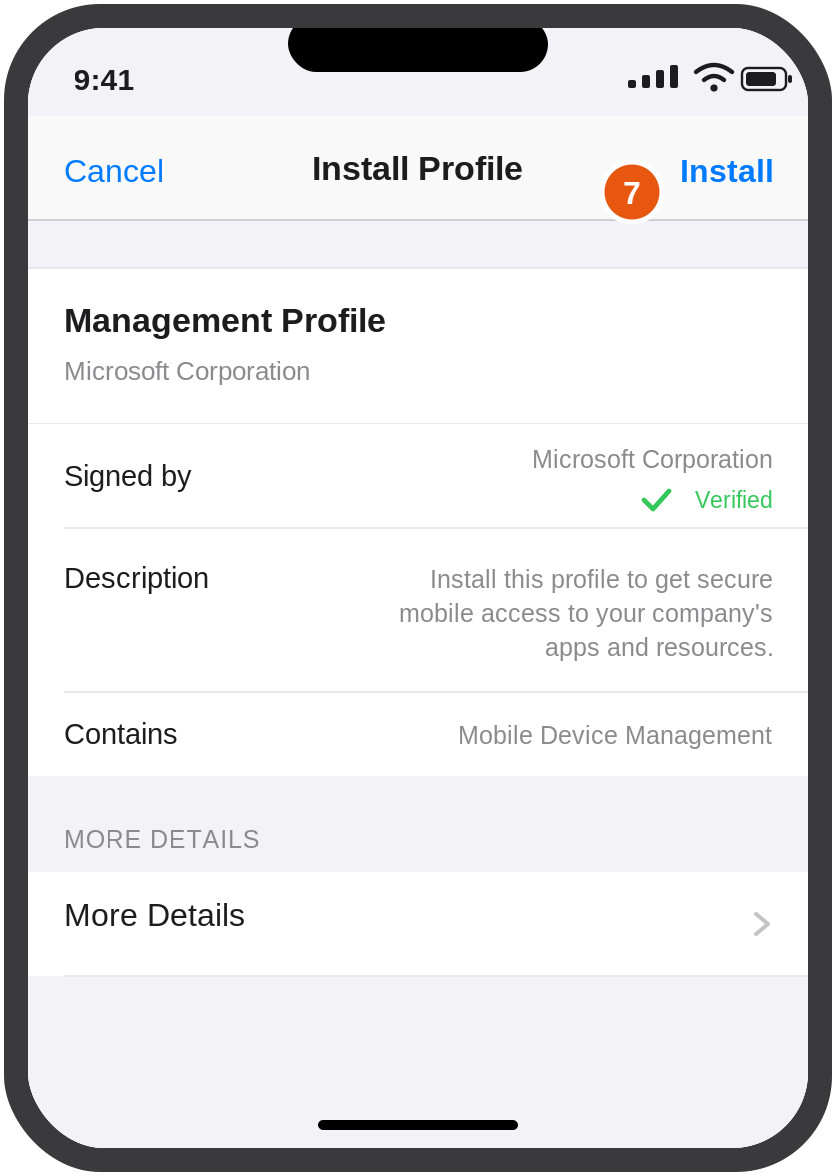
Step 8 — Enter your device passcode if asked
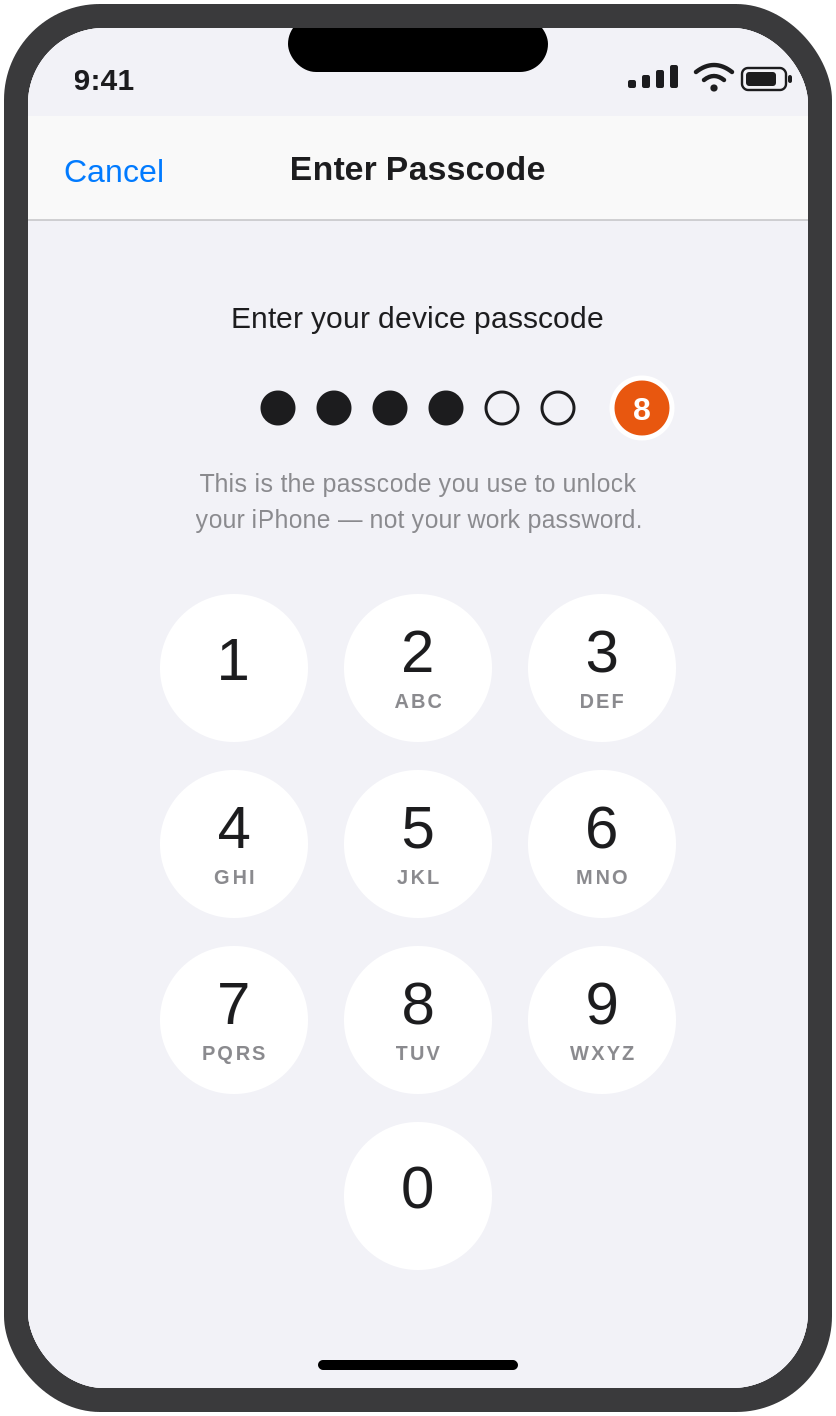
If iOS asks for a passcode, enter the one you use to unlock your device.
That's your device passcode — not your work password. If you don't have a passcode set, you'll go straight to the next screen.
Step 9 — Tap Install again, then Trust
Apple now shows a Warning screen about mobile device management. This is normal and safe to accept — see What Computerman can and cannot see above.
Tap Install in the top-right corner. If a confirmation bar slides up from the bottom, tap Install once more.
Finally, on the Remote Management prompt, tap Trust. Enrolment isn't finished until you do.
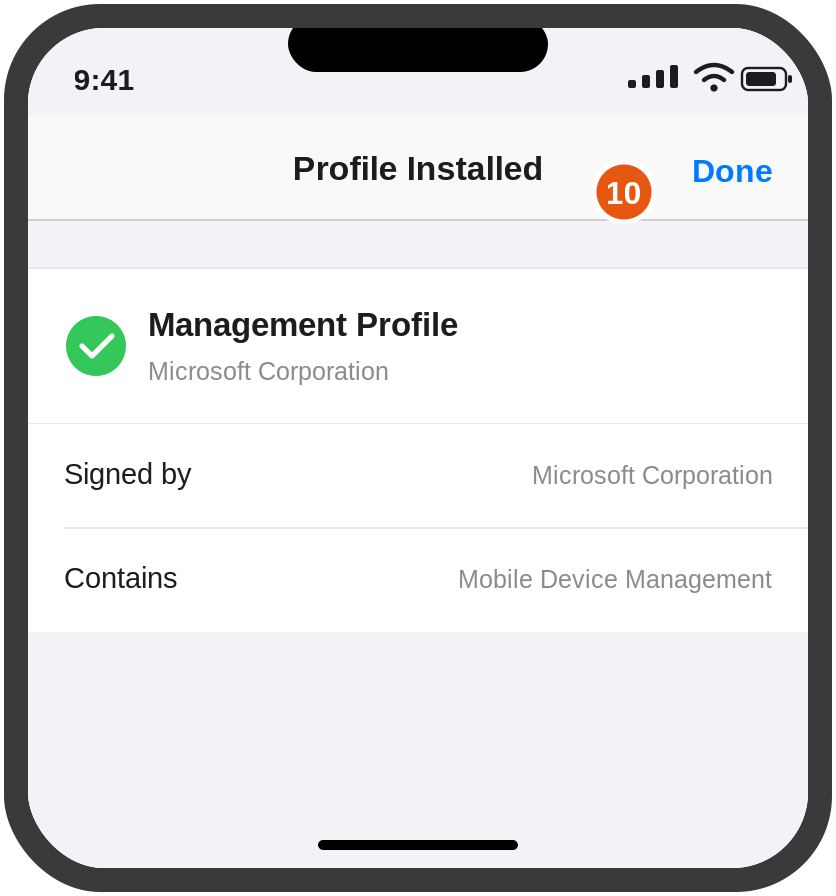
Step 10 — Tap Done, then return to Safari
When you see Profile Installed with a green tick, tap Done.
Then switch back to Safari and complete any remaining prompts.
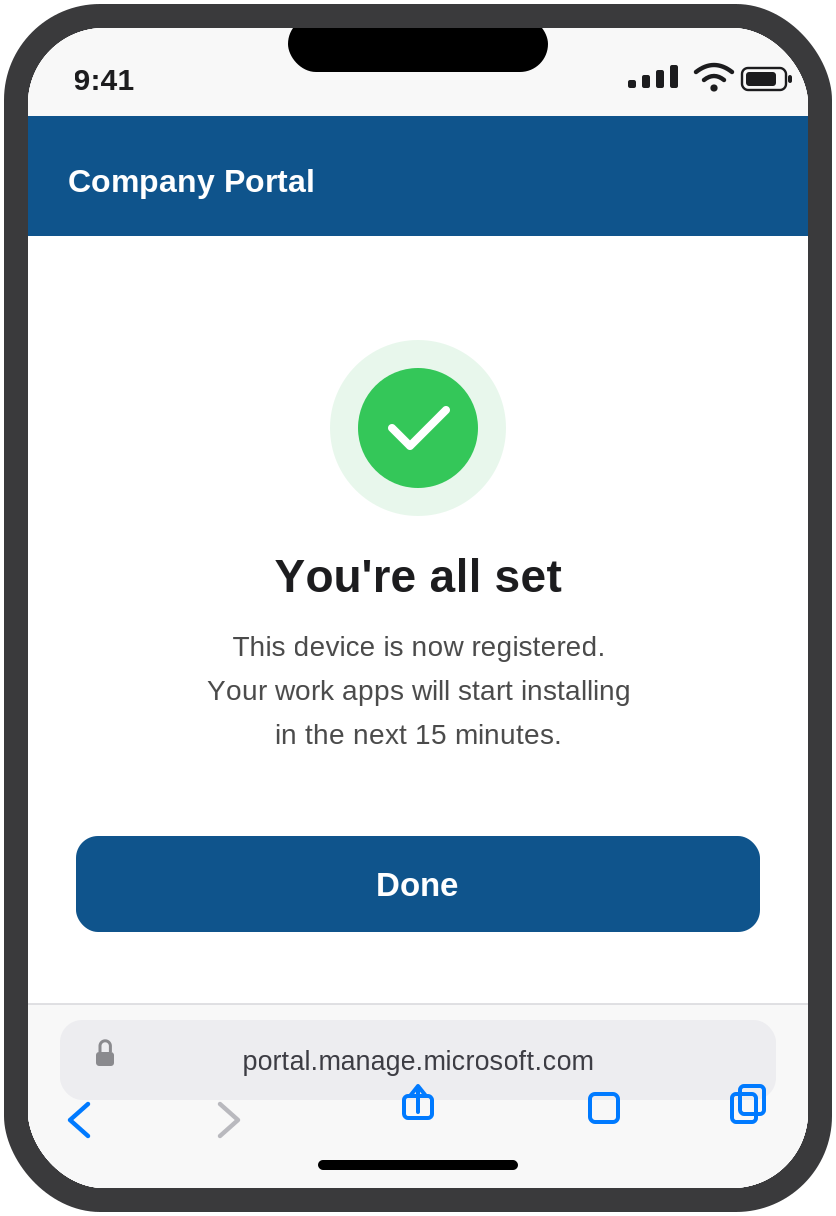
Finishing up
Safari will confirm that your device is registered. Tap Done and you can close the browser.
Over the next 15 minutes or so, your work apps will begin installing on their own. You'll see them appear on your Home Screen with a progress circle.
Microsoft Authenticator is required for this to work. It normally installs automatically as part of this process — wait until it has finished before you sign in to any work app. Signing in too early is the most common cause of "it didn't work" calls. If Authenticator hasn't appeared after about 30 minutes, please contact Computerman support.
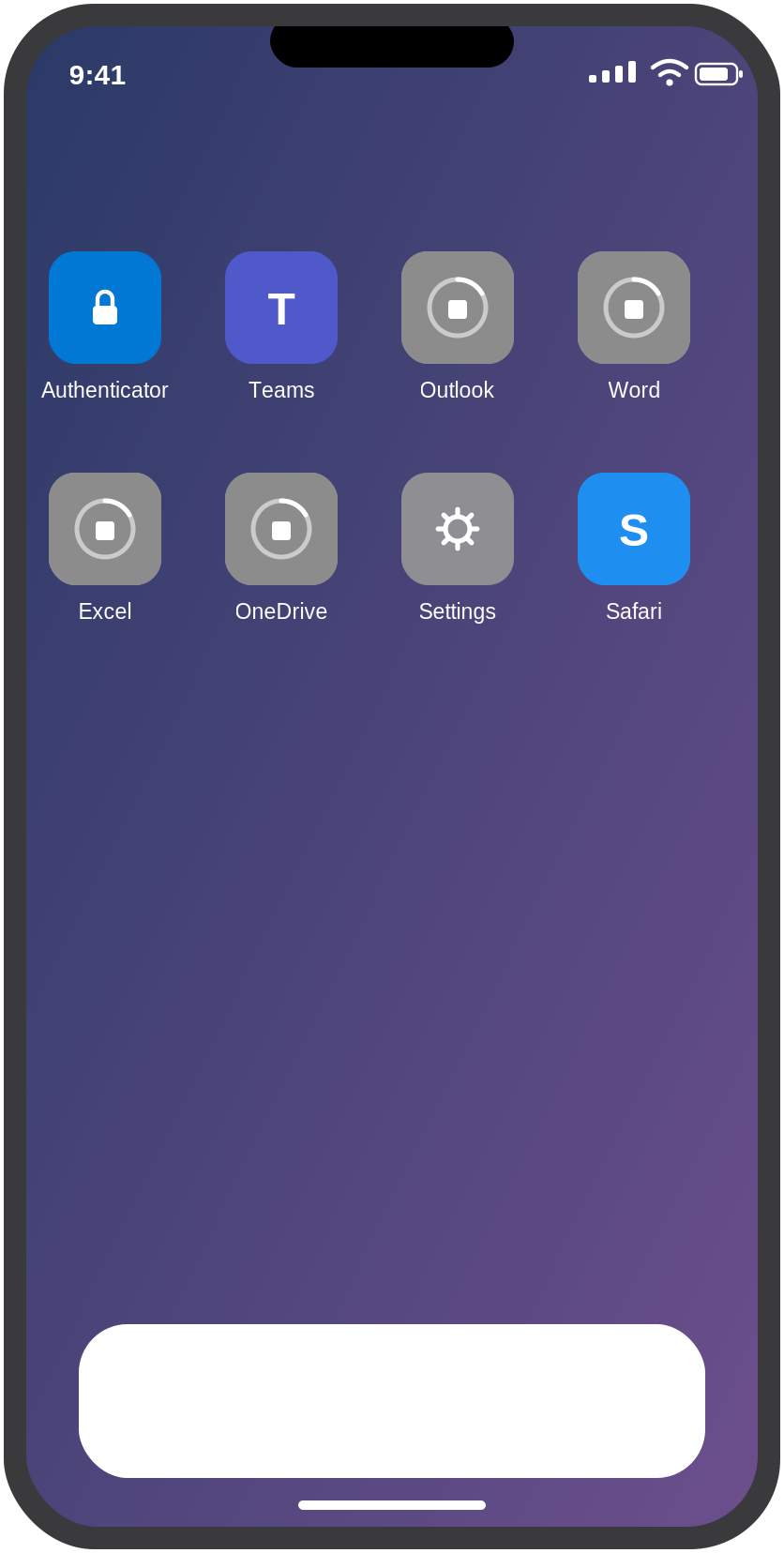
Once Authenticator has appeared:
- Open a work app — Microsoft Teams or Outlook is a good test.
- Sign in with your work account.
- The app may pause to check your device settings. If it asks you to update iOS or change a setting, do it, then tap Recheck.
- After that, work apps that use single sign-on will let you straight in without asking you to sign in again.
Check it worked
Go to Settings > General > VPN & Device Management > Management Profile > More Details. You should see Microsoft Authenticator listed as the Single Sign-On Extension. If it's there, you're fully enrolled.
If something goes wrong
| What you're seeing | What to do |
|---|---|
| Your password is rejected | Check you're using your work password. If you're not sure, reset it at aka.ms/sspr or contact the Service Desk. |
| The approval never arrives in Authenticator | Make sure the approving phone has signal or Wi-Fi, then tap Send another request on the sign-in page. |
| The page won't load, or nothing downloads | You're probably not in Safari. Copy the address into Safari and try again. Chrome, Edge and Firefox can't do this. |
| "Profile Downloaded" isn't in Settings | Check Settings > General > VPN & Device Management under Downloaded Profile. If it isn't there either, iOS has deleted it — a downloaded profile expires after about 8 minutes if it isn't installed. Repeat from Step 1. |
| Install is greyed out, or the profile won't install | The downloaded profile has most likely expired. Repeat from Step 1 and install it straight away. |
| The passcode screen won't accept your code | It wants your device unlock passcode — the code that unlocks the iPhone itself, not your work password. |
| You were asked to install the Company Portal app instead | Your device is on iOS/iPadOS 14.9 or earlier. Intune automatically switches those devices to app-based enrolment, which needs the Company Portal app. Update iOS, or call us and we'll walk you through it. |
| The profile installed but no apps appeared after 30 minutes | Make sure the device is unlocked and on Wi-Fi, then contact the Service Desk. |
| Microsoft Authenticator never appeared | Install Microsoft Authenticator from the App Store yourself, then sign in to a work app. |
| You got stuck partway and want to start over | Settings > General > VPN & Device Management > Management Profile > Remove Management Profile, then begin again at Step 1. |
Common questions
Do I need to install the Company Portal app?
No. Web-based enrolment doesn't need it. If you're later asked to install work apps yourself, use the Company Portal website or contact us.
Will this wipe my phone?
No. Enrolling erases nothing, and you don't need to reset the device.
Can Computerman erase my phone later?
Normally we only remove work apps and work data. Because this method uses full device management, a remote factory reset is technically possible — but we'd only do that if you asked us to, for example, if the device were lost or stolen.
Can Computerman read my personal messages or see my photos?
No, and we can't see your location either. See What Computerman can and cannot see above.
What happens when I leave the organisation?
We remove the work profile remotely. That removes work apps and work data and leaves everything personal alone.
Need a hand?
The Computerman Service Desk can walk you through any step.
Computerman Service Desk
| Phone | 1300 530 000 |
| support@computerman.com.au | |
| Hours | 9 AM - 5 PM, Monday to Friday |
References
This guide follows Microsoft's and Apple's official documentation:
- Set up web-based device enrollment for iOS/iPadOS — Microsoft Intune
- Set up your personal device for work — Microsoft Intune user help
- What information can my organization see when I enroll my device? — Microsoft Intune
- Overview of Apple device enrollment in Microsoft Intune
- Wipe a device — Microsoft Intune
- Install a configuration profile on your iPhone or iPad — Apple Support
Illustrations in this guide are simplified representations of the iOS screens you'll see. Exact wording and layout vary slightly between iOS versions.
Prepared by Computerman.